
Calls
The Calls page is the portal's start page. It shows the recorded calls you are allowed to see, newest first. A User sees their own calls; a Manager or Administrator sees all calls of the organisation (see Roles and access).
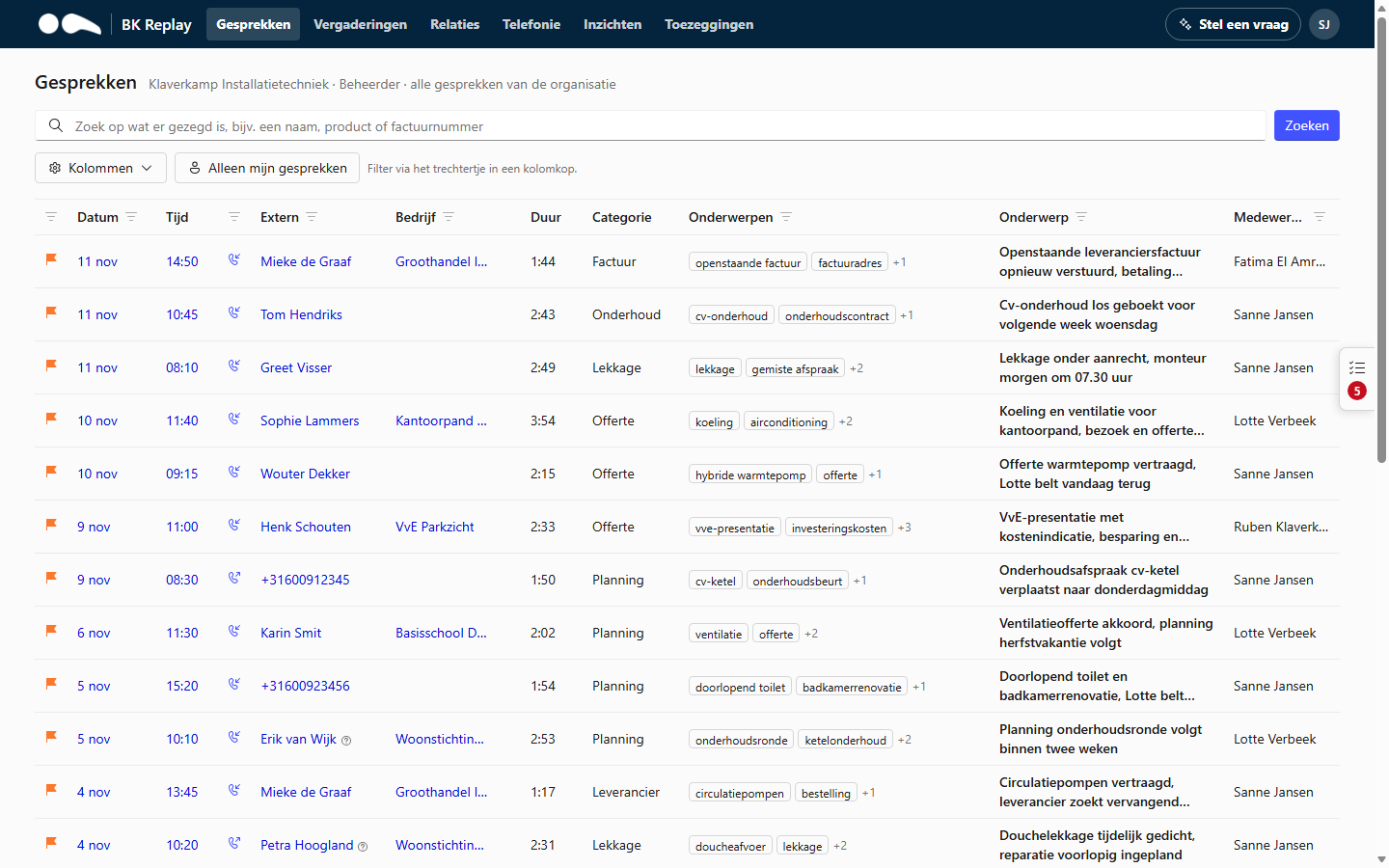
The list
For each call you see, among other things:
| Column | Meaning |
|---|---|
| Flag | The orange flag means follow-up is needed, according to the summary |
| Date, Time, Duration | When the call started and how long it lasted |
| Direction | Incoming or outgoing |
| External | Who called or was called: the contact's name if the number is known in your CRM, otherwise the number |
| Company | The contact's company, from your CRM |
| Category, Topics | The category and topics the AI gave the call |
| Subject | A short title of the call |
| Employee | The employee who was recorded |
| Queue | The queue or call centre number the call came in on (hidden by default) |
A question mark after a name means the number belongs to several contacts and BK Replay estimated from the conversation who it was.
Click the date, time or name to open the call (see Viewing a call). Click a company or name for all calls with that relation.
Searching
Type what was said in the call into the search box: a name, a product, an invoice number. BK Replay searches all transcripts you are allowed to see. Each result shows the snippet where the word occurs; click it to play the call from that moment.
Filtering
- Click the funnel in a column header to filter on that column: period, direction, phone number, company, subject, follow-up needed, employee or queue.
- Only my calls (for Managers and Administrators) shows only calls in which you were recorded or took part.
- Columns lets you choose which columns you see. Restore default resets the layout. Your choice is remembered per user.
Extra fields your organisation set up under Summary (for example a ticket number) can also be shown as a column.
When does a call appear?
A call appears in the list as soon as it is stored, usually within a minute after hanging up. The transcript and summary follow a few minutes later. While that is in progress, the call shows the processing status.
Calls of employees without a recording policy, calls with numbers on the Never record list and internal Teams calls are not in the list.